
If you want to print on paper the view displayed in the Design control, you can follow the approach reported in this article.
Suppose that your viewport looks like this:
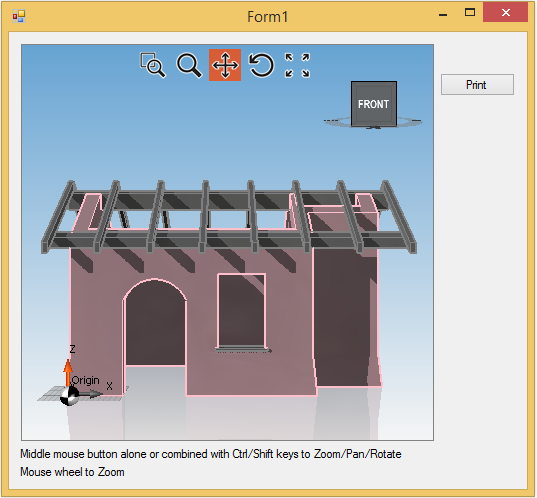
and you want to print it on paper in hidden line mode.
Your printButton handler should contain the following code lines:
private void printButton_Click(object sender, EventArgs e)
{
    // Saves the current view
    Camera cameraSaved = (Camera)design1.ActiveViewport.Camera.Clone();

    design1.ActiveViewport.Camera.ProjectionMode = projectionType.Orthographic;

    // Creates printing setting object and customizes it
    HiddenLinesViewSettingsEx hdlS = new HiddenLinesViewSettingsEx(design1, hiddenLinesViewType.Viewport);

    hdlS.PenEdge.Color = Color.Blue;
    hdlS.PenSilhouette.Color = Color.Blue;
    hdlS.PenEdge.Width = 1f;
    hdlS.PenSilhouette.Width = 1f;

    // Creates paper preview
    HiddenLinesViewOnPaperPreview hdl = new HiddenLinesViewOnPaperPreview(hdlS, new Size(800, 600), 0.25);
    design1.DoWorkAsync(hdl);

    // Restores saved view
    design1.RestoreView(cameraSaved);
}
Through HiddenLinesViewSettingsEx class you can customize several preview parameters (here you can see PenEdge and PenSilhouette color set to Blue, and their width line thickness set to one).
Finally, object HiddenLinesViewOnPaperPreview creates the preview opening the window reported below.
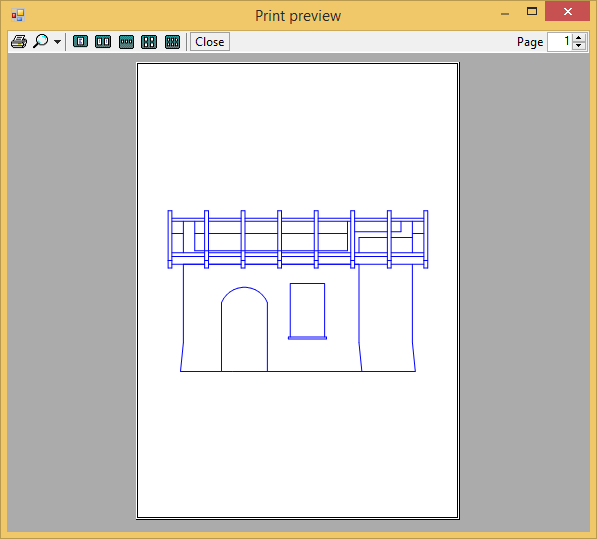
Please note that HiddenLinesViewOnPaperPreview class takes as arguments the settings we have created first, the dimensions of the preview windows and the scale factor. Scale factor permits you to calibrate the dimension of your entities on paper. If you want, for example, to print the entities with the same dimension you have drawn them with on viewport, you should set scale factor to 1.
Finally, if you prefer to print directly without displaying the preview window, you should use HiddenLinesViewOnPaper object instead of HiddenLinesViewOnPaperPreview.
Comments
Please sign in to leave a comment.